



Think about the last video you watched on your phone. Did you even have the sound on?
Chances are, you didn’t. One study found that roughly 74% of Facebook videos are watched completely muted. People scroll in all sorts of situations where turning up the volume just isn’t an option.
Captions are really helpful here. Just reading along while watching makes things way easier to follow.
They’re also good for accessibility. People who are hard of hearing rely on them. And if someone’s watching in another language, captions make life a lot simpler.
So, where do you start? Finding a tool that can help add captions is the first step. The nice part is, there are plenty out there that make it pretty easy.
1. Happy Scribe
Some admissions videos cover fairly detailed information. Application requirements, program options, scholarship details, or financial aid steps can all appear in the same recording.
Once you add subtitles, getting them right matters fast. Even a tiny mistake can throw viewers off, especially if there’s a lot of information to follow.
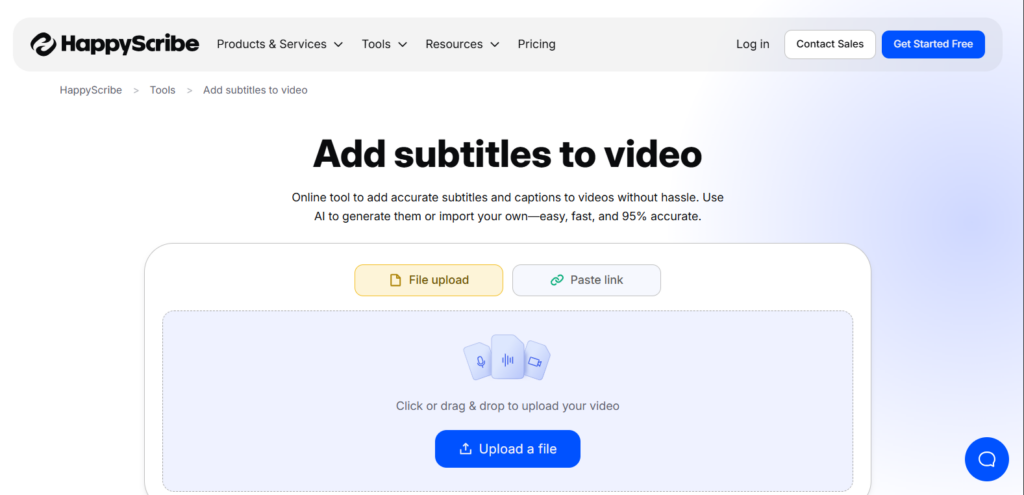
So, many education teams use Happy Scribe to add subtitle to video content when subtitles need to be reliable.
It’s especially handy for videos where accuracy really matters, like recording a faculty interview that mentions multiple program names or scholarship deadlines. Having captions you can trust means fewer mistakes and less follow-up from students asking for clarification.
The tool handles different accents and technical terms well, which makes it reliable for videos like faculty interviews or narrated campus tours. You still review the captions before publishing, but starting with something accurate saves a lot of time and effort.
For larger teams that need to collaborate, Happy Scribe makes it easy. Multiple people can jump in and check the captions together, which helps catch little mistakes before the video goes live.
Why so many people use Happy Scribe:
- Strong transcription accuracy, even when speakers have varied accents
- Multiple export formats including SRT and VTT
- Collaboration tools that allow teams to review captions together
- Accessibility and compliance features
2. Kapwing
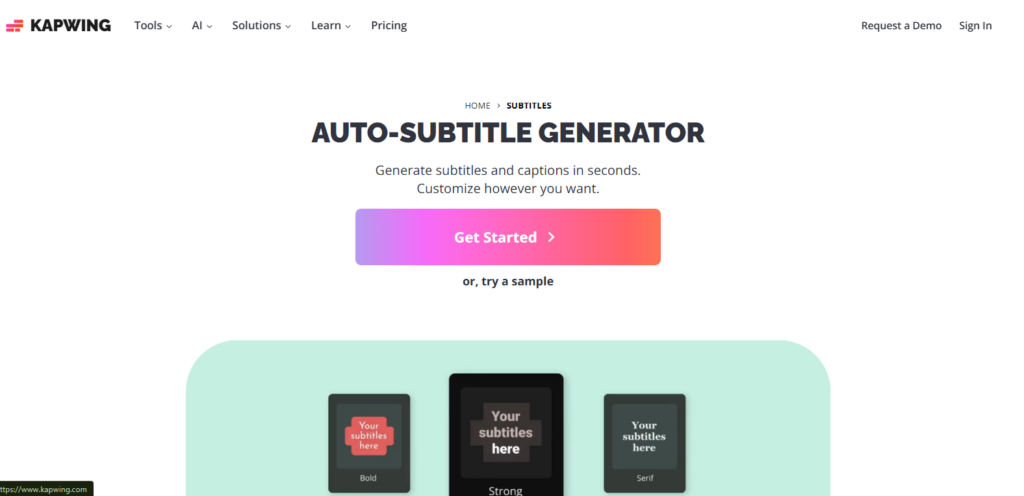
If your team posts videos on social media, you’ve probably seen Kapwing before. It’s quick and simple when you just need captions added without fuss.
Everything happens in your browser, so you don’t need to install anything. You upload the video, generate subtitles, and tweak any lines that look off. For short social videos, having captions makes a big difference because most people scroll with the sound off.
Kapwing is also flexible for different types of content. A short student testimonial or a quick campus event clip can usually be captioned pretty quickly.
Some teams also adjust the way captions look. Matching the colors or fonts to your school’s branding helps the text blend in with the video and keeps things looking consistent across social platforms.
Why users like Kapwing:
- It runs entirely in the browser, so there’s nothing to install
- Automatic transcription works quickly for short clips
- Captions can be styled to match branding
- Works especially well for short-form social videos
3. VEED
Some teams like to keep everything in one place instead of switching between video editing and caption tools. VEED does both.
With VEED, you can upload a webinar and trim out whatever you don’t need. Then add subtitles and export the video.
It really saves time and keeps things simple, which is handy when you’re trying to get a bunch of videos out quickly.
The interface is also pretty easy to figure out, even if you don’t normally edit videos. That makes it a good fit for admissions teams who just want to tidy up recordings and get captions added quickly.
Where VEED helps:
- Subtitles and video editing available in the same platform
- Interface that is straightforward for non-editors
- Cloud access for collaboration across devices
- Several export options
4. Otter.AI
Otter.ai is great for catching conversations, webinars, or virtual info sessions. It records and transcribes everything automatically, and then you can turn the transcript into subtitles.
The transcripts are searchable, which is super handy. You can pull out clips or reuse parts of a session in other videos. For instance, if a webinar covers scholarships, program requirements, and deadlines, you don’t have to grab the whole thing. You can use bits that you need and leave out the rest.
What makes Otter a top contender:
- Automatic transcription for meetings and webinars
- Searchable transcripts
- Easy collaboration and sharing
- Useful for repurposing webinar content
5. Rev
Rev combines automated transcription with the option for human-reviewed captions. Teams can generate subtitles automatically and then choose whether they want a professional reviewer to check for accuracy.
The platform also supports multiple caption formats, which makes it easier to publish videos across social media, learning systems, or your website. It’s especially useful if your team creates both formal recordings and short social clips.
Where Rev shines:
- High accuracy with optional human review
- Multiple subtitle export formats
- Quick turnaround times for transcripts
- Useful for longer or more formal videos
6. Descript
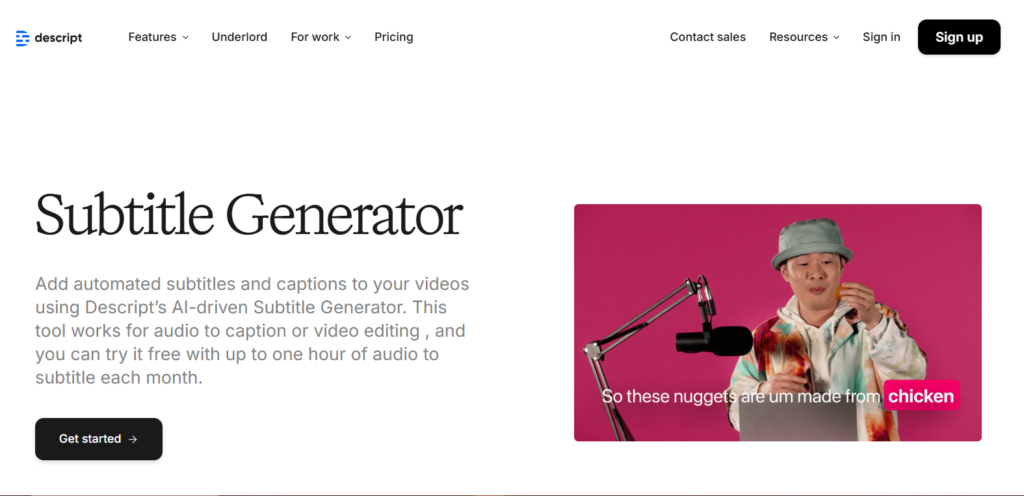
Descript works a little differently from most traditional video editors. Instead of adjusting clips on a traditional timeline, you edit the transcript itself.
With Descript, if you delete a sentence from the transcript, that part disappears from the video too. The text and video stay connected, which makes it way easier to chop a long recording into shorter clips.
For instance, imagine a virtual info session where a professor talks about campus life, study tips, and upcoming events. You don’t need the whole session for every clip. With Descript, you can grab just the parts you want and turn them into quick videos without re-editing everything.
Reasons to choose Descript:
- Text-based video and subtitle editing
- Easy to repurpose long recordings into multiple clips
- Collaboration tools for teams
- Strong transcript editing features
7. YouTube Studio
If most of your videos already live on YouTube, you might not need a separate caption tool at all. The platform already includes its own subtitle features.
When you upload a video, YouTube Studio will usually generate captions automatically. They’re not always perfect, so it’s worth opening the caption editor and giving the transcript a quick check before publishing.
Another small bonus is search visibility. YouTube also looks at subtitle text when it’s working out what a video covers. So if someone searches for things like campus accommodation, student housing, or admissions requirements, captions can sometimes help your video show up.
Advantages to using YouTube Studio:
- Free automatic captions
- Better visibility in YouTube search
- Simple editing directly inside the platform
- No additional software required
How to Choose the Right Subtitle Tool for Your Business
Videos that explain admissions policies or financial aid steps often include a lot of specific details. Program names, important dates, and requirements all come up, so it’s worth double-checking the captions before publishing.
For quick social posts, a simple browser caption tool is usually enough. It gets the job done without slowing everything down, which matters if your team is posting videos often.
Longer recordings are another story. A full lecture, webinar, or virtual open day session usually needs a bit more control. Being able to edit the transcript or pull shorter clips from the recording can make the editing process much easier.
So before picking a platform, it’s worth stepping back and asking a few practical questions first:
- How accurate your captions need to be
- How often your team publishes video content
- Whether multiple team members need editing access
- Export formats required for learning platforms or social media
- Accessibility requirements
- Your available budget
Subtitle Formats
SRT files are the most widely supported subtitle format and work with the majority of video platforms. VTT files are commonly used for web-based video players and certain learning management systems.
Some teams also choose burned-in captions, where subtitles are permanently embedded in the video itself.
Making Subtitles a Consistent Part of Your Video Strategy
Captions can also help your videos get found online. Many search engines and video platforms actually read subtitle text when they’re figuring out what a video is about. This means that having accurate captions can significantly improve your video’s visibility in search results. When your spoken words are transcribed into text, it gives search engines more content to index, making it easier for people to discover your videos. So captions are not just an accessibility feature — they are also a powerful tool for growing your audience and increasing your reach online.
That’s helpful when you’re trying to reach prospective students online. Someone might be searching for application steps, housing, or scholarship information and end up finding your video because those same words appear in the captions.
After a while, subtitles stop feeling like an extra task. They just become part of the routine when you’re publishing a video. And in the long run, captions make things easier for everyone. Viewers can follow along more easily, and your content has a better chance of being discovered.

